
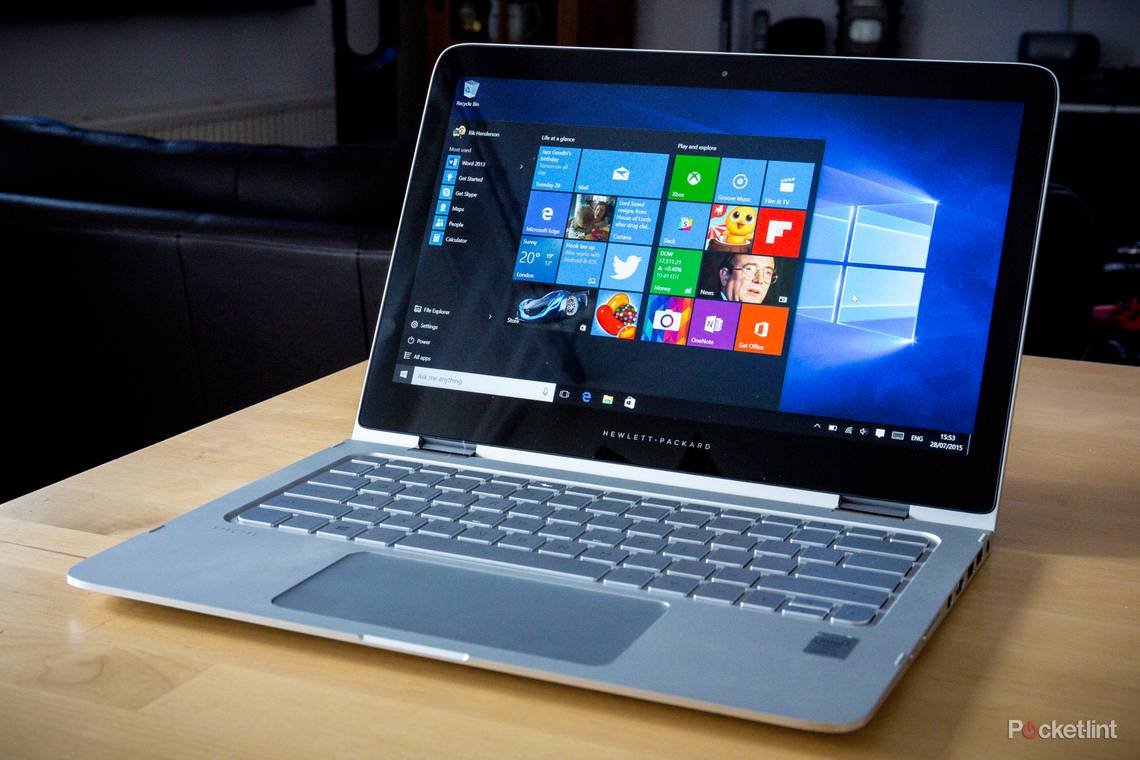
The desktop is centre stage again in Windows 10. Finally.
Our quick take
Windows 10 is the most positive push for Microsoft's operating system in some years. It's a stable and good-looking operating system, it's not a risk to upgrade now if you're worried about applications compatibility (and the new apps, such as Mail and Office, are great), and it doesn't force a fussy and largely full-screen touch-based interface on its users like Windows 8.
Is it perfect? Not quite. We've had an occasion where all the icon images and descriptions disappeared from the Start menu's mini Metro, leaving mostly empty green boxes; the Edge browser hasn't handled all pages perfectly either; and Cortana has her foibles. We're expecting a plethora of patches in the coming months to address such bugs (and more) – but the point to take-away is that they are minor bugs, fixable for now with the occasional restart.
If you're eligible for the upgrade – which is free for all Windows 7, 8, and 8.1 users – then we definitely recommend taking the Windows 10 leap. And if you don't like it then you can simply revert to your previous version within the first month of use.
As an operating system that puts the desktop first, while understanding touch interface in the same breath, Windows 10 is as preened as we could have hoped. Whether on PC, laptop or tablet, it's the OS upgrade we've all been waiting for.

Windows 10 - 4.5 / 5
| FOR | AGAINST |
|---|---|
|
|
With the last version of Windows, the love-to-hate-it and hate-to-love-it Windows 8, it seemed like Microsoft was trying to convert the entire population into tablet users, even though plenty of people still used a keyboard and mouse with their PC. Windows 8 tossed the desktop out of the, ahem, window and replaced it with a full-screen Start screen filled with Live Tiles as well as full-screen apps.
Microsoft eventually wised up and realised touch-based interfaces are only ideal for – what a surprise – tablets and mobile devices. Windows 8.1 went some way to reprising things, but there was still room for improvement.
Which brings us to now. Skipping past non-existent number 9, it's all about Windows 10, which brings back the old Windows you know and love, but in a modern form that's designed to work across a range of devices – from phones to tablets to laptops and PCs.
Ok, so Windows 10 hasn't completely ditched the Windows 8 feel, with traces from the last OS still visible, such as Live Tiles and a tablet mode, but the latest version builds upon that in many positive ways. It's relaxed a bit and doesn't feel the need to turn every device into a touch device, which we thank it for.
Having been using Windows 10 through multiple pre-release iterations and now, a week into its full consumer release, is this – finally – the operating system that Microsoft has got absolutely right?
Easy upgrade
Upgrading to Windows 10 is simple: an icon will appear in your taskbar (on Windows 7/8/8.1) letting you know the Windows 10 upgrade is available. It'll actually prompt you to "reserve" your copy, as there seems to be a queue for upgrades. Rather than let everyone upgrade simultaneously Microsoft has staggered availability to avoid downloads churning to a halt due to demand.

As soon as it's ready (which might take a day or two), you'll get a notification on Windows 8 or a Windows Update in Windows 7 will let you know it's ready to roll. You'll need to give Windows 10 somewhere between 30 to 60 minutes to install.
Most of your previously-installed apps will still be installed and ready to use, but some may need to be reinstalled entirely. Our Logitech gaming software, for example, needed to be quick reinstalled on our PC, but then it was good to go.
Windows 10: What's new?
Windows 10 has a black visual theme by default, which we think looks pretty sleek, along with occasional Windows Vista/7 "Aero" transparency effects found in places like the Start menu and elsewhere. But if the dark theme isn't your cup of tea, you can always select a different accent colour for the Start menu, task bar, or the Action Center.
READ: Windows 10 tips and tricks: Here's what your PC or tablet can now do
In terms of navigation, Microsoft has done well with Windows 10. Gone are the days of trying to fumble around with hot corners to access settings and more. Now, for quick access to a variety of settings, including the All Settings page, you can use the new Action Center. It's also the hub for notifications/information and is found in one spot on the taskbar. Your emails will show up here as previews, for example, meaning you can click on one in order to view it in the Mail app or instead dismiss it without opening the app in full.
The Action Center is just one of three major locations for accessing settings: Start > Settings; Notifications > All Settings; Ask Me Anything > type in the word "Settings". These methods will all take you to the new Settings app, not the traditional Control Panel spread which you can still get to by searching for it via the Ask Me Anything search bar (or saying "Hey Cortana", but more on that later).

The ability to create multiple virtual desktops has also come to Windows 10. There have been a variety of programs in the past that allowed this to varying degrees of success, but now it's baked right in, accessed by clicking "Task View" in the taskbar or swiping up with three fingers on a trackpad. It's a lot like Apple's OS X Mission Control, as it brings up all active windows as well as a desktop roll along the bottom. You can have over 16 active desktops, although managing that many may be more trouble than it's worth, depending on your needs.
There's also a new Tablet Mode (toggle it on in the Action Center) which – and no prizes for this one – makes for an ideal way to navigate when using a convertible laptop with touchscreen or tablets, such as the Lenovo Yoga or Microsoft Surface. Tablet mode is off by default but brings back what is essentially the Metro interface; the taskbar is minimal, and there's a full-screen Start screen, for example.
Another handy navigational feature is Snap for multitasking. You can snap any window to half of the available screen, then Windows 10 will nicely arrange all your other apps in the remaining half. It's simple to use and useful.

The new "old" Start menu
You've probably heard it before, but we'll say it again: the Start menu is back in Windows 10. Yep, you can stop holding your breath now.
It adds some new functionality while retaining its value from past iterations of Windows. Most used apps are shown at the top, followed by recently added, which is surprisingly helpful. After all, there's a good chance you've installed an app but completely forgotten about it after a few days. Below recently added is the file browser, settings, power options, and all apps.
To the right of all that in the Smart menu is a "mini Metro" Live Tile interface, which works great in this instance. It's unobtrusive and quicker than the Start screen from Windows 8, and we especially like that you can still see your desktop with this iteration, rather than having to switch to a separate interface just to see it. Actually making use of it helps keep the desktop clean too, as you can pin both modern and traditional apps in the Start menu now.
There's also the ability to create separate sections or groups for similar icons, like gaming, work, social, and so on. Just drag an icon down until a green bar shows up, then release to add. You can then hover over the space above it and add a title for the section too, which helps bring a level of organisation you just can't get with the actual desktop.
If you don't like Live Tiles or any of this at all, you can always right-click and remove everything to achieve a more standard Windows XP-like Start menu.

Cortana interaction
"Hey, Cortana."
If you thought you'd never be able to talk to your computer, think again. Cortana is the personal assistant in Windows 10 – much like Apple's Siri or Google Now – and she can do just about anything you ask her to. Well, in theory.
Everything Cortana knows about you is customisable under the Notebook tab > Settings found in the side bar. From there, you can also setup always-listening "Hey, Cortana" voice recognition, meaning you'll be able to shout various commands and questions at your PC. Or you can type them, but that's totally boring.
And that's just the beginning of what she can do.
READ: Cortana in Windows 10: Here's how it works and why it could change PCs forever
Cortana is powered by the cloud, with the idea that – and assuming you're not a Windows Phone user – you'll download on Android or (eventually, when it's available) iOS so that everything from your laptop is synced. Should you ask Cortana to remind you to make a reservation, that reminder will sync to your phone and remind you at a later time.

You can also use Cortana to set reminders for other events or dates (access from the Cortana sidebar, below Notebook), providing a notification which pops out from the right side of the screen until you take action.
As far as reliability goes Cortana does have some trouble with voice commands from time to time. She occasionally can't quite get the word or phrase you're saying. "Open Edge" keeps turning into "Open and", for example. On the other hand, "Open control panel" works without a hitch, as do several other various commands.
Cortana is also integrated into the new default browser, called Microsoft Edge. She handles all basic functions within the search bar, such as mathematical queries, quick weather info, stocks, and so forth. If you notice that "ring" display in the search bar, you know she's responsible for that information, and therefore you have someone to blame if the info is wrong. Well, we say someone like she's a real person. Technically it's an it, right?
Browsing with Edge
Google Chrome may be overthrown as the most-used web browser in the coming years. Microsoft's new Edge web browser definitely doesn't feel like Internet Explorer 2.0. It's an entirely new thing. We've spent over a month playing with it, during which time we've had no crashing and no pop-ups. Yep, finally, a built-in pop-up blocker that does what it claims to do.
The Edge browser looks and feels streamlined, much like the rest of Windows 10. The interface is clean and to the point, although there is some bizarre lag on certain sites. PayPal and Webster-Merriam seem to hang and freeze. That said, they don't hold up the rest of the browser or other windows/tabs, unlike some other browsers.

Web notes and a Reading View are some major new features that bring a lot of utility to the table for research and some unadulterated reading. Web Notes allows you to mark up any web page using a digital marker – much like a highlighter on a PDF-like notepad – using your finger or stylus on a touchscreen or your mouse with a traditional PC. Reading view seems to magically block all other content from a page, including ads and videos, allowing you to read the article and just the article.
Favourites are a little cleaner and easier to access in Edge too. Simply click the favourites star icon and the Hub (the three lines that vaguely resemble a list) to access them, along with your Reading List, History, and Downloads. The traditional favourites/bookmarks improvements seem to sit on the backburner when compared to the Reading List, which is a new feature for queuing articles (with previews), so you can recall them at a glance and work through what you want. Once you've caught up on content, a right click in the list will remove something permanently – so make sure to save it to your actual favourites if you plan on revisiting in the future.
READ: 9 things you can do with Microsoft Edge that you couldn't do with Internet Explorer
If we had to nitpick, we'd say we don't like how hard it is to change the default search engine (it's buried deep within settings menus), and we also don't like the lack of extensions.
But if you're not thrilled with Edge, you'll be glad to know Internet Explorer still exists in Windows 10. You can access it via the "Open with Internet Explorer" option within Edge.

Windows 10: New apps
We like many of the built-in apps in Windows 10, such as Mail. It works great, especially because it supports Word for composing emails. You can also add multiple email accounts to the app and then switch between them using the "people" icon.
The new Calendar app is just as seamless in functionality, and it's accessible right from Mail. Calendar can auto-add existing dates and events from your email account, and it supports Google Calendar too.
Keep in mind these built-in apps don't immediately open or stay in full-screen mode like they did Windows 8. Microsoft has given us back the ability to minimise them, move them around, and do what we want – which is great for multi-tasking.
Other built-in apps worth mentioning are the new Photos app and the touch-based Office apps that are free for devices with a 10.1-inch screen or smaller. The Photos app is best for creating smart albums, auto-correcting images and backing-up everything to OneDrive (Microsoft's cloud-based service). You can use the OneDrive mobile app, for example, to store and sync photos from your smartphone.
As for Word, Excel, and PowerPoint Mobile, don't let their names fool you: you can use them on any Windows 10 PC. They aren't as feature-rich as the full Office desktop apps, but they're free for smaller devices and work beautifully. So that's word processing covered.

Xbox integration
Now, let's talk about the Xbox app for a second.
It's awesome. It lets you connect to your Xbox One to use your PC as a monitor. It can also serve as a hub for all your games – on PC or Xbox – as it will automatically find games on your computer and add them to the list. We also like the Game DVR feature that lets you record compatible games and share the video with your friends on Xbox Live.
With the Xbox app, you can create an account, or sign in with an existing Xbox Live account without actually owning an Xbox One. You can also make use of various features such as starting a party or messaging friends just like on an Xbox.
But the real allure of the Xbox app is for those of you who have an Xbox One, as you can begin streaming games or TV from your system.
Performance boost
Overall Windows 10 seems to be more efficient, speed-wise, with a negligibly faster startup time compared to Windows 8.1.
The real difference can be seen in gaming though. With Windows 8.1 running on a Lenovo Yoga 3 Pro, League of Legends ran at 25-40fps (with medium-low graphic settings), but on Windows 10 it's up to 40-52fps. That's a big bump.
It's hard to make a direct comparison regarding browsing the internet, using multiple programs at once, watching videos, but everything does seem to run smoother and is, in general, more responsive than it was with Windows 8.1. It's not a mind-blowing improvement, but it's still worth a mention.
To recap
If you're eligible for the upgrade – which is free for all Windows 7, 8, and 8.1 users – then we definitely recommend taking the Windows 10 leap. As an operating system to put the desktop first, while understanding touch interfaces all in the same breath for phone, tablet, laptop and desktop PC owners, it's as preened as we could have hoped for.